PowerPoint2007中锁定对象的设置具体方法
时间:2019-08-20来源:互联网作者:xzzj
大家知道PowerPoint2007中可以锁定对象吗?下文小编就带来PowerPoint2007中锁定对象的设置具体方法,一起来看看吧!
PowerPoint2007中锁定对象的设置具体方法

打开powerpoint2007软件,如图:
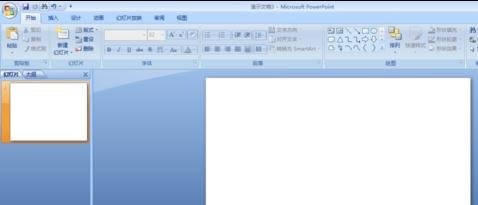
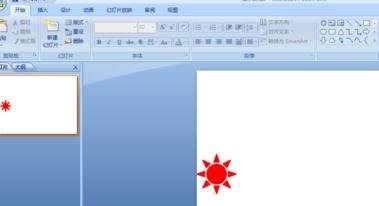
单击工具栏“插入”选择“形状”单击,在下拉列表中选择太阳,在画布上拉出一个太阳,填充为红色,如图:
单击工具栏“动画”,选择“自定义动画”单击,如图:
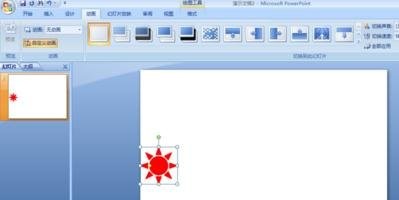
选中画布上的太阳,单击'添加效果“,在下拉式列表选择”出现“,如图:
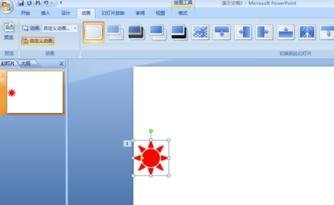
再次选择画布上的太阳,单击”添加效果“,在下拉式列表中选择”动作路径“,”绘制自定义路径“”曲线“,如图:
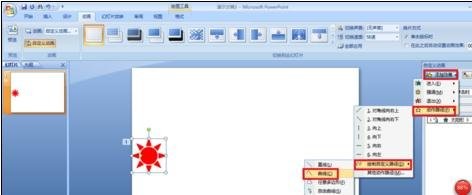
在画布上画出路径曲线,如图
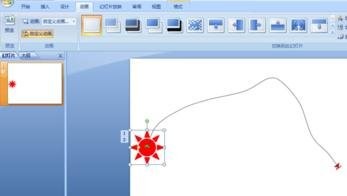
放映,观察效果,如图:


以上就是PowerPoint2007中锁定对象的设置具体方法,希望可以帮助到大家。
热门推荐
-
WPS Office
版本:官方最新版12.1.0.24657大小:231.00MB
WPS Office ppt官方版是WPS Office的一个组件,用于设计制作专家报告、教师授课、产品演示、广告宣传的电子版幻灯片,制作的演示文稿可以通过计算机屏幕或投影机播放。本次提供WPS Office完整版下载,其中的组件WPS Office ppt官方版可播放MS-PowerPoint97~2003系统所制作的PPT文件。
查看
-
微软Office2007
版本:4.3.5.10大小:5.69MB
Office 2007全免费版是微软Office产品史上最具创新与革命性的一个版本。全新设计的用户界面、稳定安全的文件格式、无缝高效的沟通协作。
查看
-
XMind8
版本:官方中文版大小:158.00MB
xmind8官方中文版是一款非常流行且老牌的免费思维导图制作与编辑软件。xmind8官方中文版是风靡全球的头脑风暴和思维导图软件,能跨平台支持支持 Win、Mac、Linux 和 iOS,xmind8官方中文版还能制作流程图、鱼骨图、逻辑图等,帮助用户快速捕捉创意与灵感。
查看
-
MindManager
版本:v2019大小:202.53MB
mindmanager中文破解版是一个可视化的工具,可以用在脑力风暴和计划当中。提供给商务人士一个更有效的、电子化的手段来进行捕捉、组织和联系信息和想法。作为便笺,挂图和白板的数字化替代品,mindmanager中文破解版提供更快的理解、更好的判断和减少会议时间来提高工作效率。
查看
-
excel2007官方版
版本:4.3.5.10大小:5.69MB
excel2007官方版是由微软公司开发的系列办公软件Microsoft office的组件之一;excel2007官方版可以满足用户在电脑上进行电子表格编辑,附带操作多种工具和应用公式;excel2007官方版市场占有率极大,大部分的计算机用户都会使用Excel来进行办公。
查看